
Aviassembly Controls: Keyboard, Controller and HOTAS Setup
How Aviassembly controls work, which settings to change first, and how to set up a controller, HOTAS stick or Steam Deck without fighting the camera.
Aviassembly flies with a simplified control model: you command pitch, roll, yaw and throttle, and the aircraft does the rest. That makes it easy to pick up with a keyboard, and it also means the default bindings are only a starting point. A cargo plane with independent engines and a camera part wants a very different setup from the stock two-seater.
This page covers what each control does, which settings to change in the first ten minutes, and how the controller and HOTAS support that arrived in later updates actually behaves.
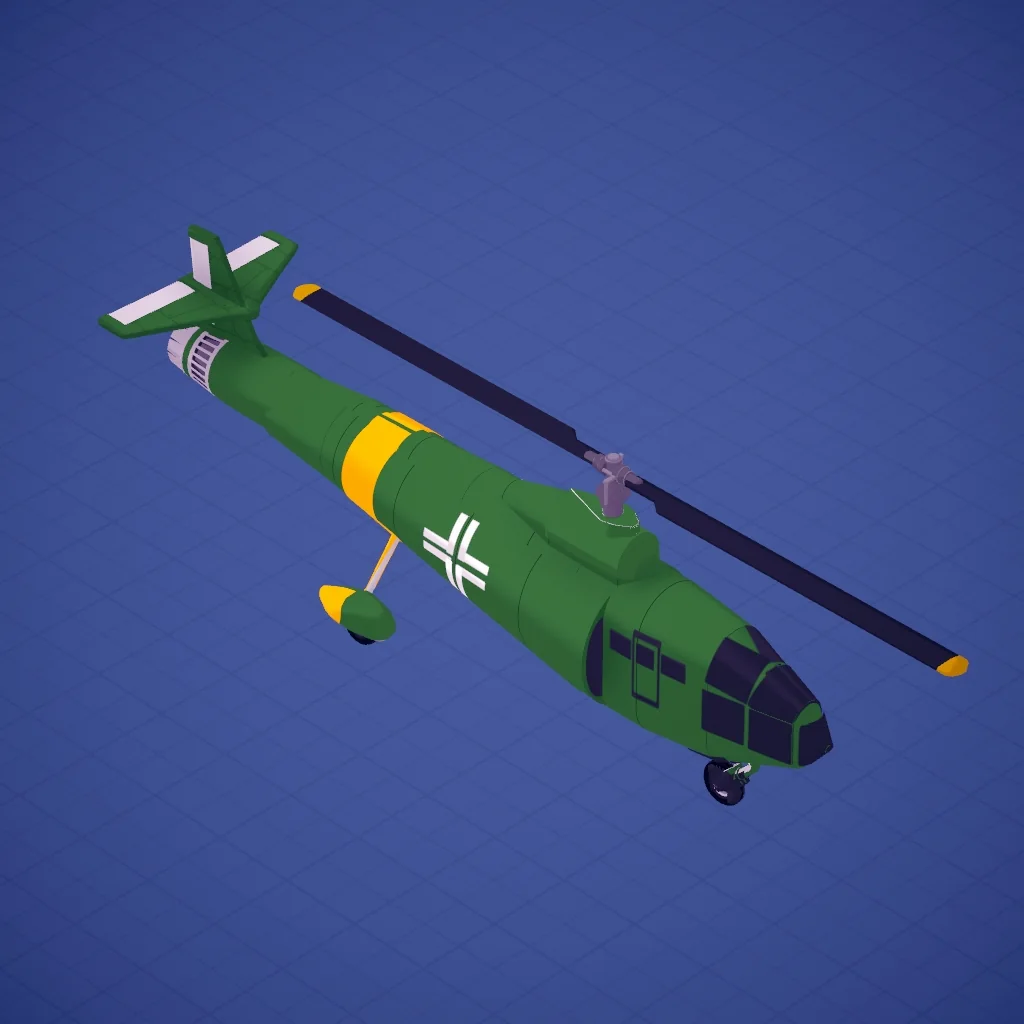
The four things you actually control
Everything in the air comes down to four inputs:
- Pitch — nose up or down. The primary way you trade speed for altitude.
- Roll — banking left or right. Turns come from roll plus pitch, not from a dedicated turn key.
- Yaw — nose left or right without banking. Useful for lining up a runway on final approach.
- Throttle — thrust, and therefore fuel burn and climb.
The aircraft's own stability does a lot of work for you. You are not trimming, mixing or managing propeller pitch. That is why the game feels casual on a keyboard and why a full HOTAS setup is optional rather than required.
Settings to change before your first real flight
Turn off auto-steer once you are comfortable. Auto-steer is enabled by default. It smooths ground handling and normal turns, but it also prevents controlled rolls and loops, which means you cannot perform the manoeuvres that some achievements and missions require. Leave it on while you learn to land, then switch it off.
Bind engines individually. In the editor, right-click an engine and open its settings. Each engine can have its own control group, its own maximum thrust cap, and reverse thrust if it is mounted facing backwards. On a twin-engine cargo plane this lets you steer on the ground with differential thrust and keep flying when one engine is damaged.
Cap maximum thrust on your workhorses. A capped engine climbs more slowly but burns less fuel all flight. For long ocean deliveries this is free range.
Check the camera binding. The camera part added in Update 10 can be mounted anywhere on the aircraft and switched between during flight. If you build sightseeing planes or need to see a slung load, bind it somewhere reachable.
Keyboard and mouse
The keyboard layout is rebindable, and the game shows the current binding next to each action in the settings menu rather than forcing you to memorise a diagram. Two shortcuts outside the flight controls matter more than any of them:
- Del deletes the selected part in the editor.
- Ctrl+Z undoes one step, Ctrl+Y redoes it. The undo history is shallow, so save big changes in stages.
The mouse drives the editor: select, rotate, move along an axis, stretch and widen fuselage faces. Rotating in 90 and 45 degree steps keeps your airframe symmetrical; free rotation is for wing incidence and small adjustments.
A slightly crooked wing flies worse than a simple symmetrical one. Use the stepped rotations for anything that comes in pairs, and only free-rotate the parts where angle actually matters.
Controller support
Aviassembly has partial controller support on Steam. A standard gamepad handles pitch, roll, throttle and the core menus, which is enough to fly and complete missions. What it does not give you is the full editor experience: building still wants a mouse, so hybrid play — controller for flying, mouse for the hangar — is the practical setup.
If a controller is not recognised, check three things in order: that Steam Input is not forcing a conflicting layout, that the controller is visible to Steam itself, and that the game was launched after the controller was connected. Update 11 added per-device rebinding for engines, rotators and decouplers, so a device that worked before a patch may need its bindings re-checked.
HOTAS and flight sticks
Update 11 added HOTAS support. That is genuinely useful for Aviassembly because the game rewards fine throttle control and smooth approaches, both of which are easier with a physical axis than with keys.
Two practical notes:
- Bind per part, not per aircraft. Engine, rotator and decoupler bindings are stored per device, so switching between a stick and a keyboard does not wipe your setup.
- Keep a keyboard within reach. Editor shortcuts and menu actions still assume one.
Steam Deck
The game runs on Steam Deck through Proton and the community layouts handle the basics. Expect to use the trackpads for the editor: the build screen is mouse-driven, and thumbsticks are a poor substitute. Flying itself works well, because the simplified flight model tolerates analogue sticks.
What to do when controls feel wrong
If the plane will not roll, auto-steer is on. If it rolls too fast and shreds a wing, your wing strength limit is lower than your roll rate allows — check the parts page→ for the strength numbers. If it will not turn on the ground, you need differential thrust or a steerable rotation joint, both covered in the tips guide→.
FAQ
Does Aviassembly support HOTAS? Yes, since Update 11. Engines, rotators and decouplers can be rebound per device, and the stick axes map to pitch, roll, yaw and throttle.
Can I fly with keyboard and mouse only? Yes. That is the default and it works for the whole game, including the editor.
Is there a camera control? You switch between mounted cameras during flight. The camera part can be placed anywhere on the aircraft, and it is the cleanest way to get an external view without leaving the cockpit.
Official source: Steam store page ↗ and patch notes ↗; in-game values checked on version 1.0.
Related Guides
- Tips and Tricks→ — the hidden rules that change how controls feel.
- Parts→ — strength and weight numbers behind every part.
- Workshop→ — download a design and fly it before building your own.
- Beginner Guide→ — the opening route.
Controller and patch details come from the Steam store page ↗, the update announcements ↗ and the community discussions ↗.